

I spend more hours in Obsidian than in any other app on my Mac. At some point, I stopped accepting that it looked like everyone else’s.
So I started building. A theme first, because I liked the look of this site enough to want it inside my vault. Then a plugin, because I missed the small symbols of my paper bullet journal. Then wallpapers, because once your tools share a look, the desktop around them starts to feel out of place.
None of it was planned as a release. I built every piece for myself. Today, I’m giving all of it away: an Obsidian theme, a bullet journal plugin, and two dynamic wallpapers for Mac, iPhone, and iPad.
Built for me first
My day still starts on paper. I’ve written about fifteen years of fountain pens and Leuchtturm1917 notebooks, and that habit shaped more of my digital setup than I expected.
A bullet journal comes with a visual language. A few symbols in front of each line tell you, at a glance, what you’re looking at: a task, an event, a note, something you pushed to tomorrow. You don’t read the page. You scan it.
Paper is where I capture. Obsidian is where I process, connect, and keep. The two halves work together, but for a long time they didn’t look like they belonged to the same system. The notebook had personality. The vault had a default theme.
That was the spark.
The look of your tools isn’t cosmetic
I used to think customization was decoration. I changed my mind.
When you browse dozens of folders in a sidebar, a distinct visual cue per category speeds up navigation far more than you’d expect. Visual differentiation is a navigation tool, not an ornament. A colored folder, a symbol in the margin, a heading that stands out — each one saves you a fraction of a second, hundreds of times a day.
There’s a catch, though. The deeper you customize, the more you fight the system: hacks that don’t sync, workarounds that break with the next update. So I set myself one rule. Everything here uses the official mechanisms — a CSS theme, a community plugin, a native macOS wallpaper format. No hacks. Nothing that holds your vault hostage.
KISS, applied to a workspace.
Suliworld for Obsidian
Why build a theme? Because I found it beautiful, and I love how it renders in Obsidian. That’s the whole reason.
Suliworld for Obsidian brings the design of suliworld.com into your vault: cream paper, forest green, orange accents, and serif type. It ships with its own fonts, so it works offline.
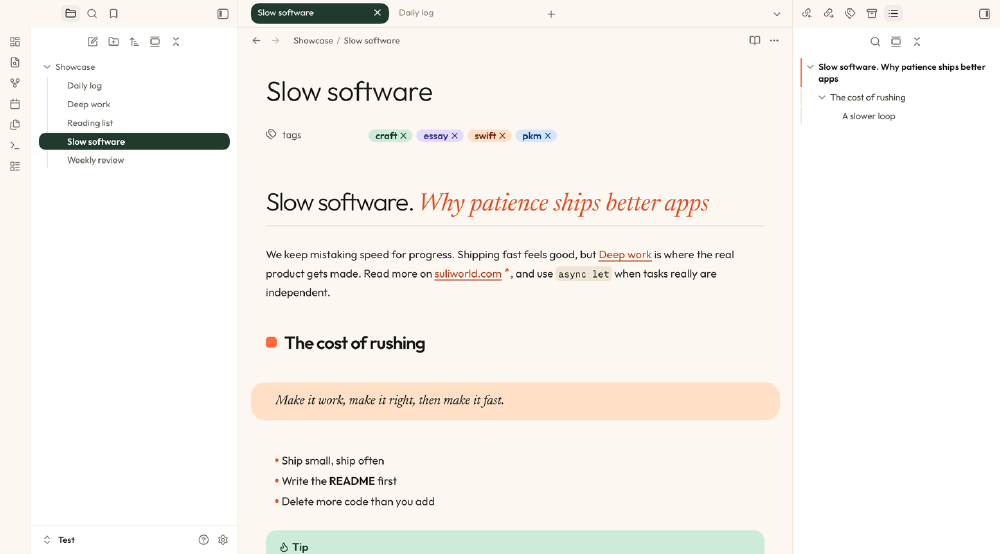
It comes in three looks:
- Cream — a light variant with white sidebars and pill-shaped tabs
- Forest — a light variant with a deep green ribbon and orange-underlined tabs
- Dark — a near-black canvas with rounded, floating panes on desktop
The details are where I had the most fun. Each heading level has its own style, and italic text in a heading turns into an orange display serif. Callouts are tinted, quotes are peach, code blocks are dark. Each folder in the file explorer gets its own tint — the navigation lever I mentioned above, built right in.
You get five bundled font pairings. If you install the Style Settings plugin, you can also tweak fonts, switch between Cream and Forest, and toggle floating cards, folder colors, link icons, drop caps, blockquotes, and embeds.
The theme is free and open source under the MIT license, and it’s available in Obsidian’s community themes. Open Settings → Appearance → Themes → Manage, search for Suliworld, and click Install and use. The source code lives on GitHub.
Suliworld Signifiers
The bullet journal symbols started inside the theme. Then I realized they had nothing to do with colors or fonts. They’re about meaning. So I moved them into their own plugin, Suliworld Signifiers, which works with any theme. The theme handles the look; the plugin handles the signifiers. One tool, one job.
The plugin reads the character between the brackets of a task and draws the matching symbol:
- [ ] Task
- [x] Done
- [*] Event
- [n] Note
- [>] Migrated
- [<] Scheduled
- [!] Important
Using it feels close to writing on paper:
- Click a signifier to toggle it between done and not done.
- Right-click (or long-press on mobile) to mark it done, switch to another signifier, or turn it back into a plain bullet.
- Type
- [and the plugin suggests signifiers. - Press Enter at the end of a line, and the next line starts with the same signifier.
- Assign hotkeys to the commands that set, cycle, or remove signifiers.
Everything is customizable: characters, names, symbols, light and dark colors, size, and your own custom signifiers.
One signifier matters more to me than the others: migrated. On paper, a task that isn’t done has to be copied by hand to survive the next day. After the third rewrite, the question asks itself: do I need to do this at all? Digital tools remove that friction — tasks roll over on autopilot, and the list grows forever. I didn’t want to automate that away. Marking a task [>] is still a decision you make, line by line.
The plugin is free, open source, and MIT-licensed. Install it from Settings → Community plugins → Browse: search for Suliworld Signifiers, install, then enable it. The source code lives on GitHub.
Two wallpapers: Vague and Graph
Once Obsidian looked like home, my desktop didn’t. So I made wallpapers. On the Mac, both are dynamic: Vague follows the time of day, Graph follows light and dark mode. Each one also comes in light and dark versions for iPhone and iPad.
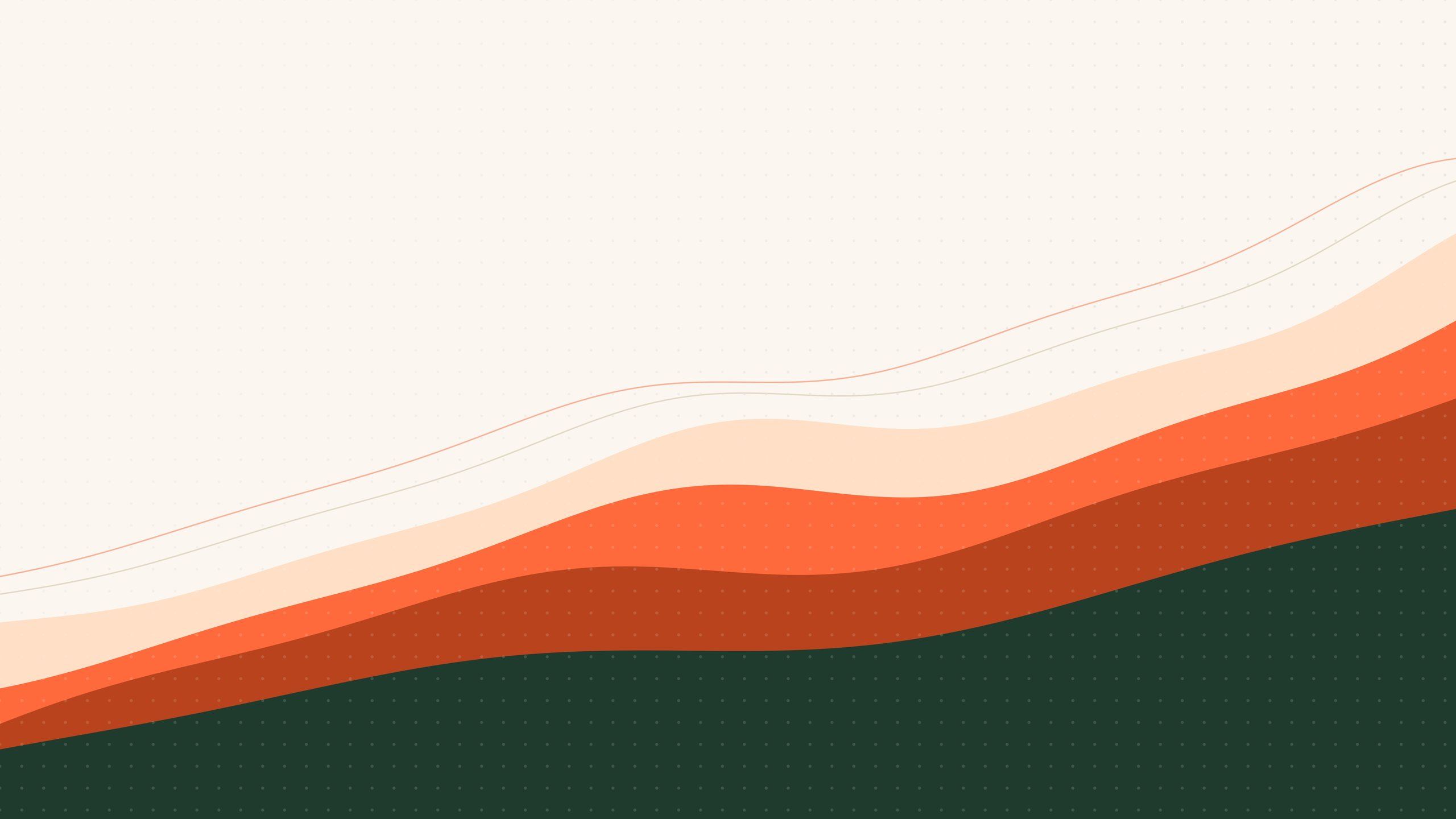
Vague — French for “wave” — stacks layers of cream, orange, and forest green across the screen, in the colors of this site. On the Mac, it moves through five moments of the day: dawn, morning, late afternoon, dusk, and night. It’s the quiet one. It stays out of the way of your windows.
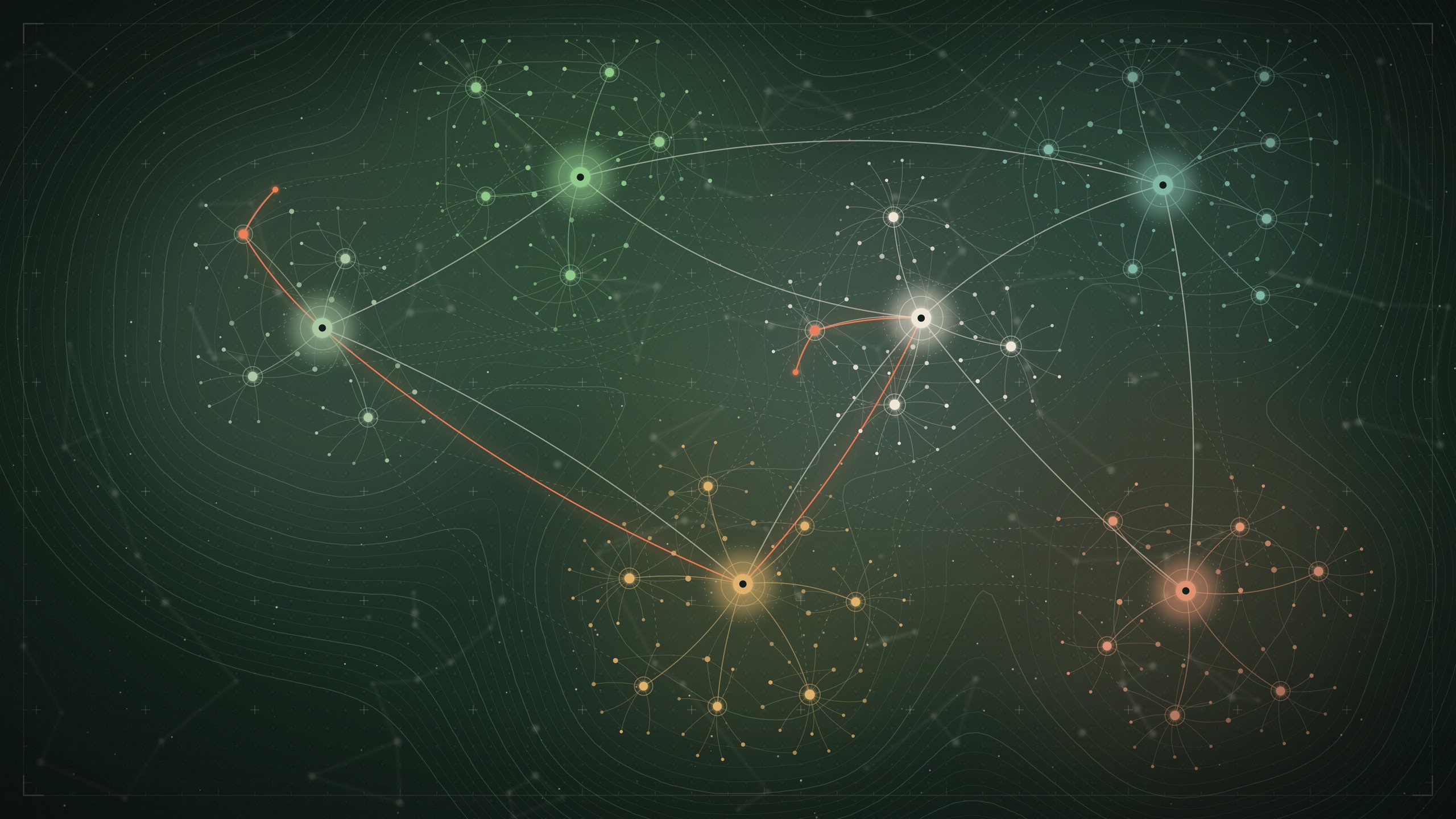
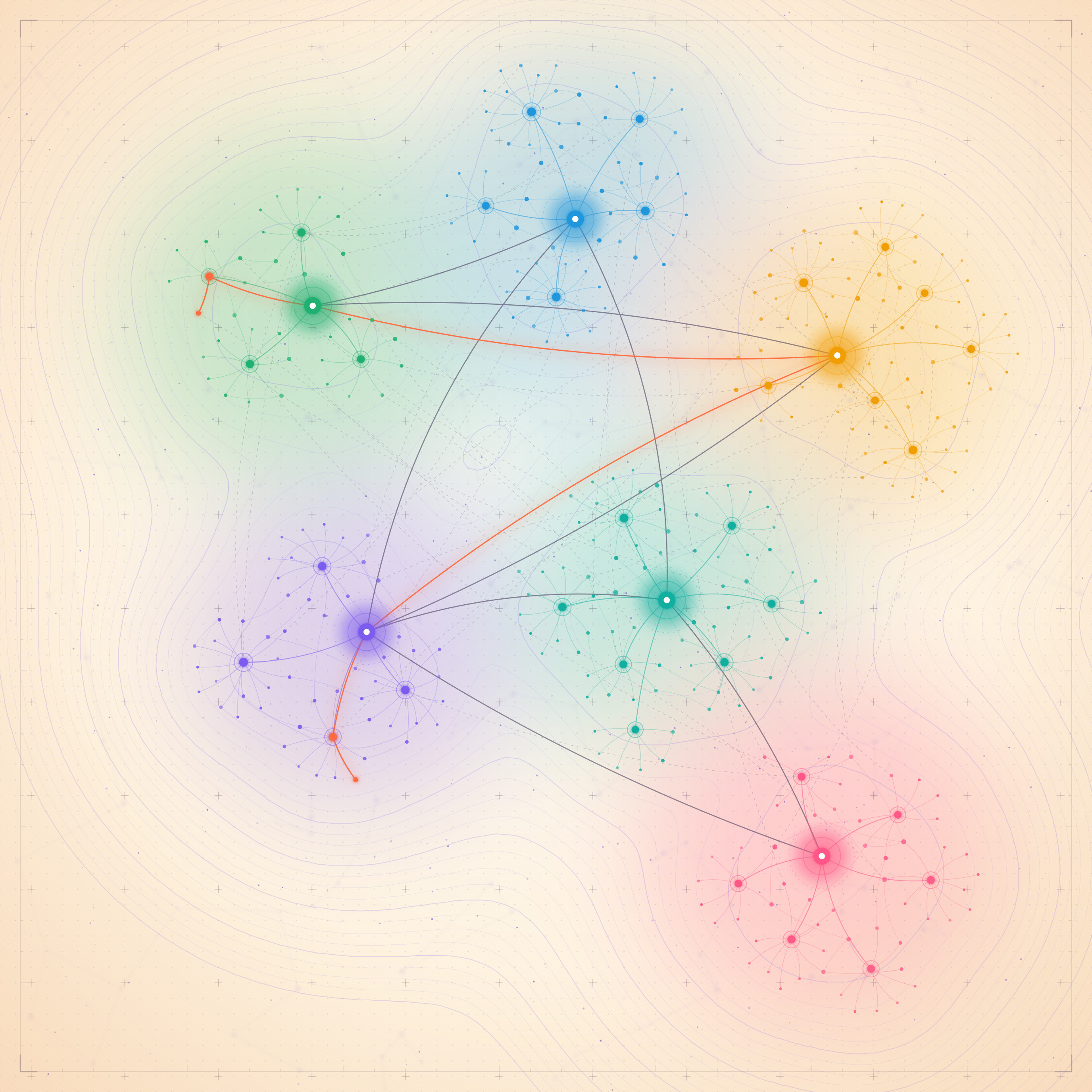
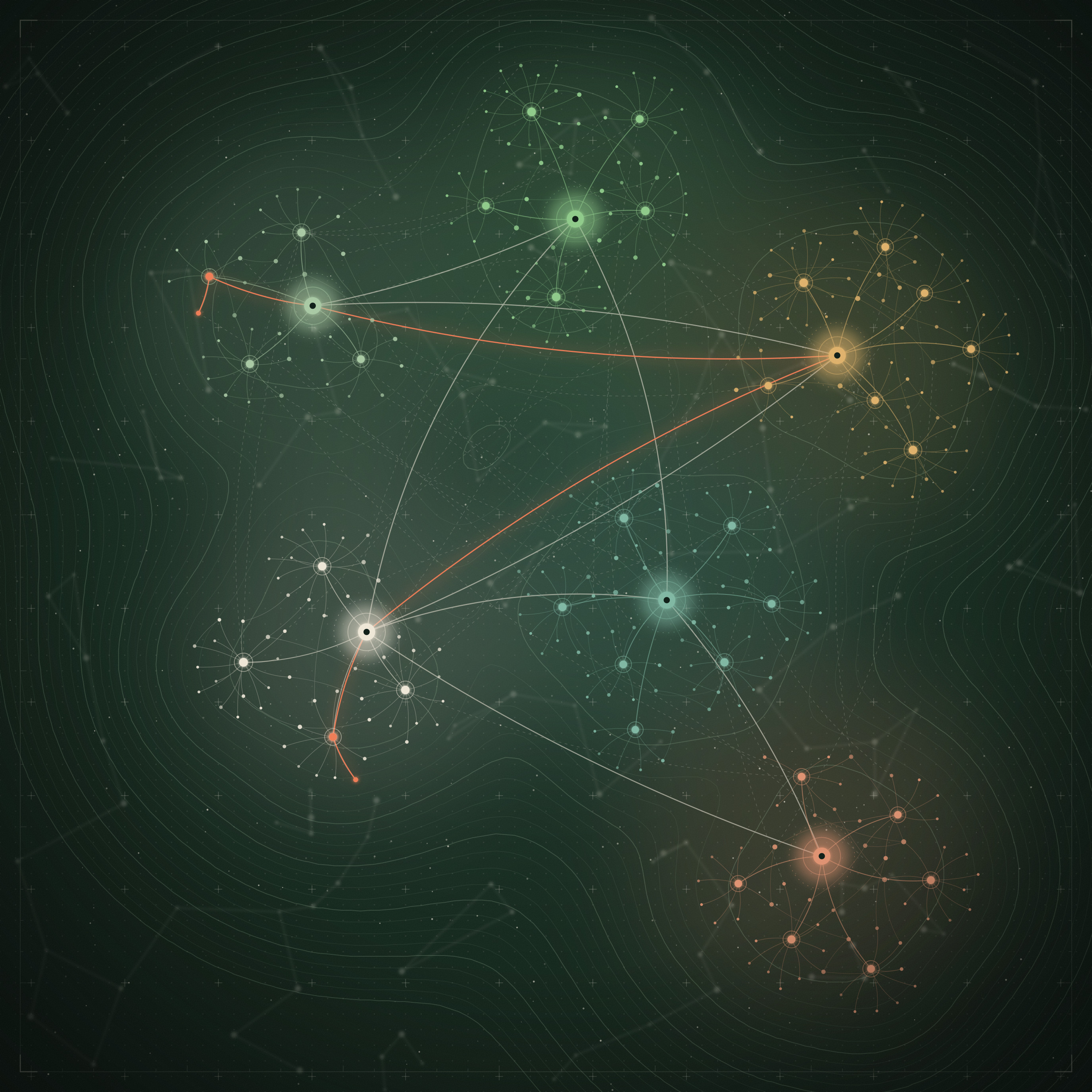
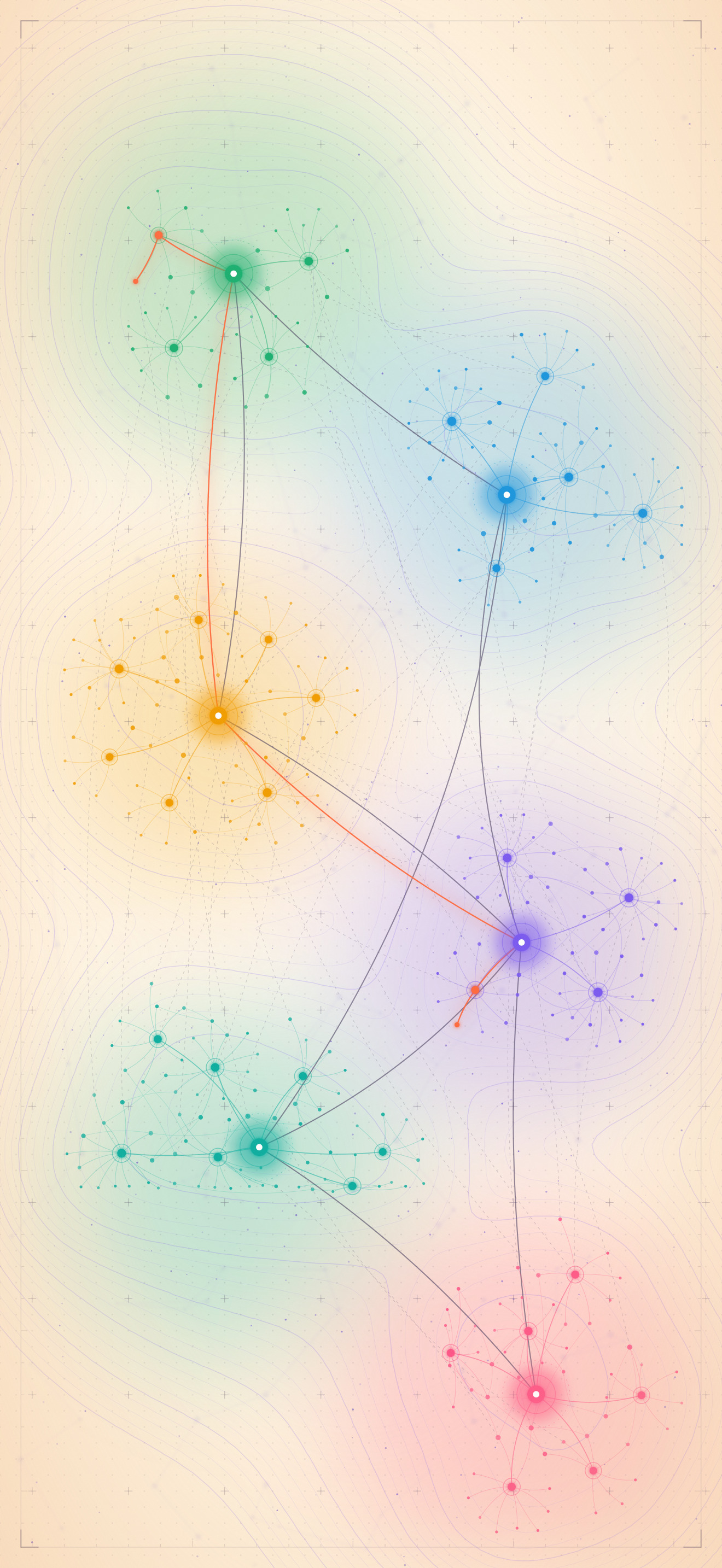
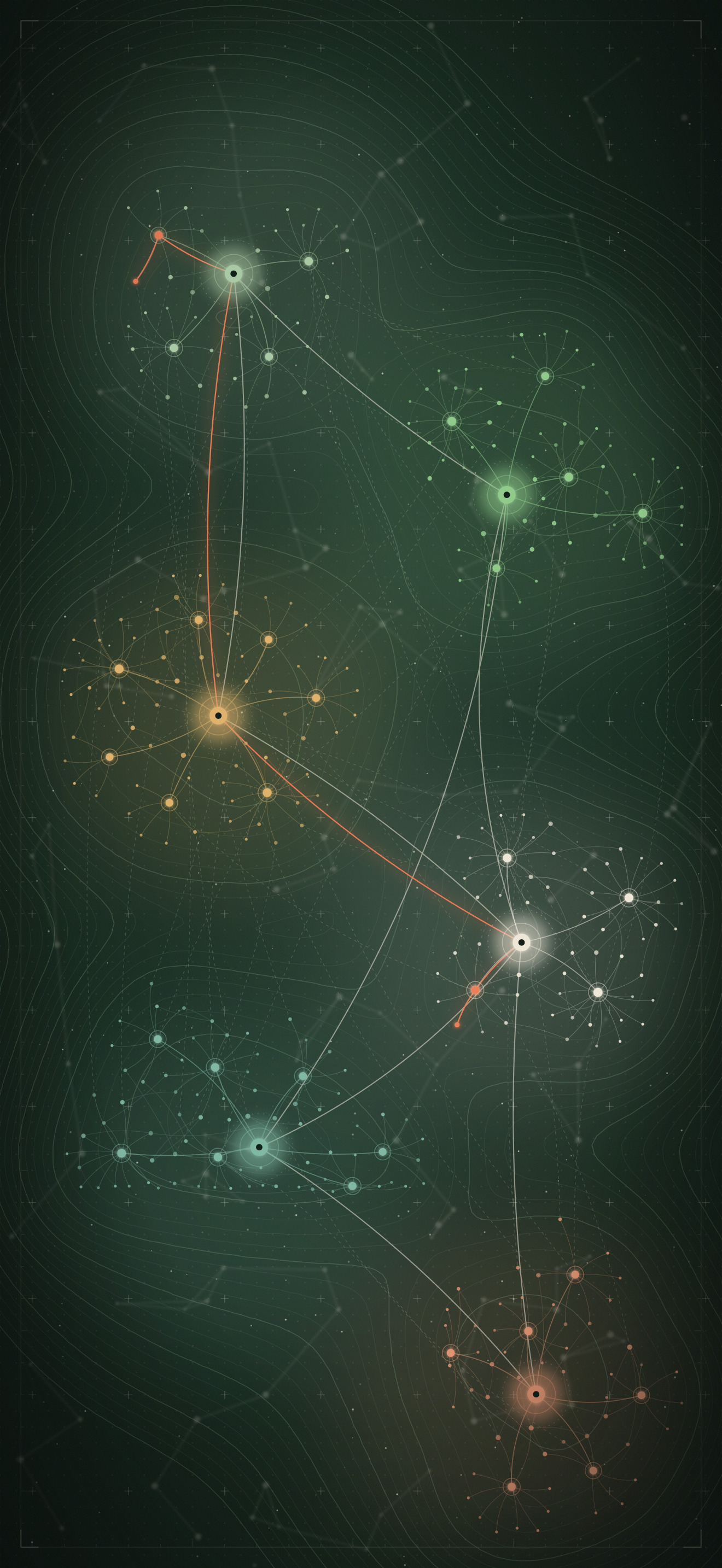
Graph is my knowledge graph turned into a picture. Clusters of notes — permanent notes, concepts, maps of content — connected by a coral thread of thought, over a background of topographic lines that follow the density of the graph. Bright colors on warm cream in light mode, deep green in dark mode. It’s the wallpaper for anyone who has ever stared at Obsidian’s graph view a little too long.
To install one on your Mac, open System Settings → Wallpaper, click Add Photo…, and pick the .heic file. Then choose Dynamic (time of day, Vague only) or Automatic (light and dark mode) in the menu next to the preview. On iPhone and iPad, save the image to Photos, then set it from Settings → Wallpaper → Add New Wallpaper.
Grab them
Everything is free, and everything lives on suliworld.com:
- Suliworld for Obsidian — suliworld.com/obsidian-theme
- Suliworld Signifiers — suliworld.com/obsidian-signifiers
- Vague and Graph wallpapers — suliworld.com/wallpapers
Prefer a direct download? Here are the files:
- Vague — Mac, dynamic 5K · iPad light / dark · iPhone light / dark
- Graph — Mac, dynamic 5K · iPad light / dark · iPhone light / dark






Conclusion
I didn’t set out to make goodies. I set out to make my own workspace feel coherent — from the notebook on my desk to the vault on my screen to the wallpaper behind it. Sharing came later, almost as an afterthought.
That’s the order I trust most. When you build for yourself, you can’t fake the need. Every choice has to survive daily use before anyone else sees it.
The tools worth sharing are the ones you’d have built anyway.
What’s the one customization in your setup you’d never go back on?